> ## Documentation Index
> Fetch the complete documentation index at: https://docs.magicfox.co/llms.txt
> Use this file to discover all available pages before exploring further.
# How to confirm MIDI input in MainStage
If you're experiencing an issue, one of the first things to check is that MainStage is receiving MIDI from your keyboard. If MainStage isn't receiving MIDI, the issue is likely with your equipment or how your equipment is configured.
## Checking for MIDI activity
### The fox's eye
The eye of the fox logo in the bottom right corner will light up when MainStage receives MIDI.
 ### The corresponding screen control
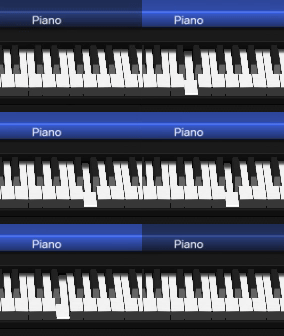
MainStage screen controls are configured to listen for specific MIDI messages and will animate and illuminate accordingly.
### The corresponding screen control
MainStage screen controls are configured to listen for specific MIDI messages and will animate and illuminate accordingly.
 ### The MIDI Message Monitor
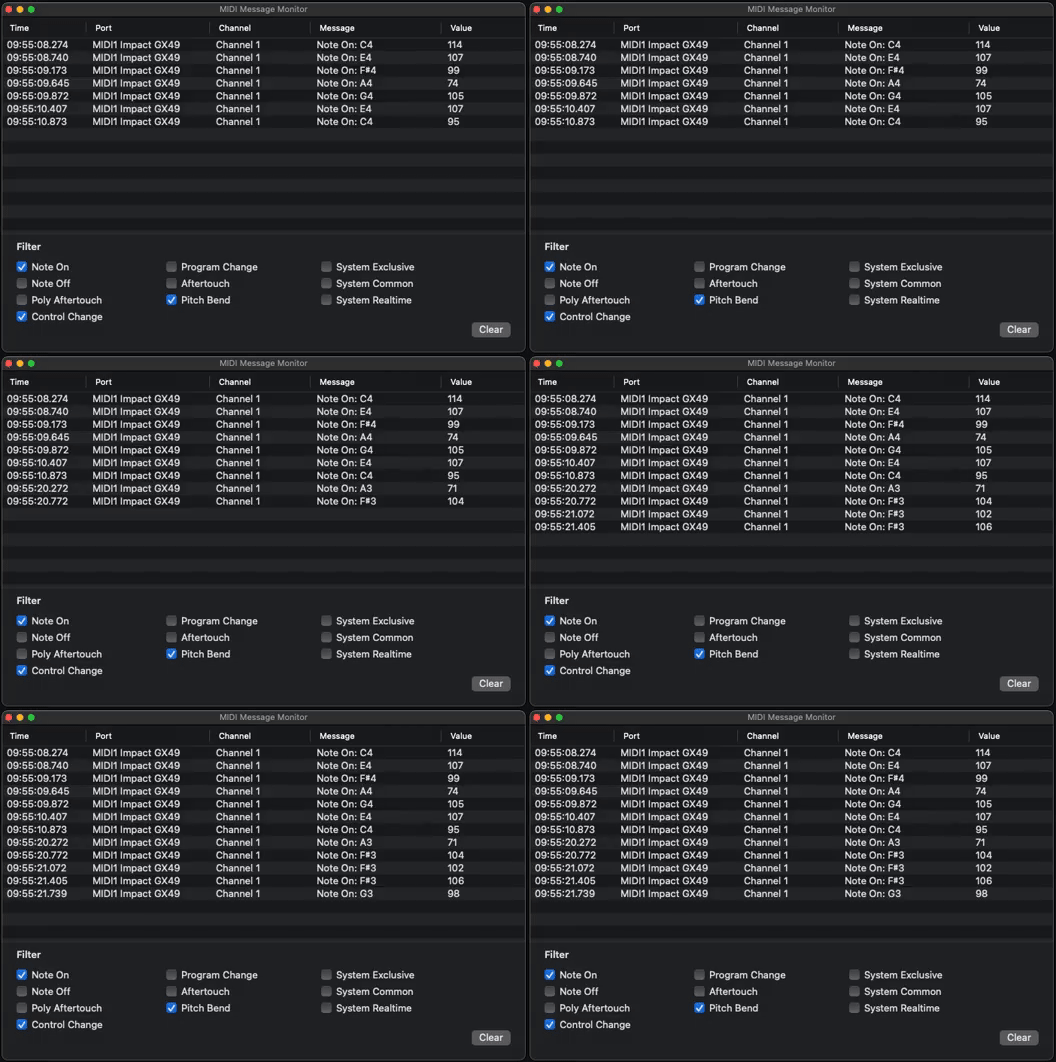
Choose `Window > MIDI Message Monitor` to open the monitor. Note: some keyboards relentlessly send "realtime" messages that obfuscate the more pertinent messages. For our purposes, Note On/Off and Control Change messages will be the most useful to look for in this list.
### The MIDI Message Monitor
Choose `Window > MIDI Message Monitor` to open the monitor. Note: some keyboards relentlessly send "realtime" messages that obfuscate the more pertinent messages. For our purposes, Note On/Off and Control Change messages will be the most useful to look for in this list.
 ## No MIDI input
If MainStage isn't indicating MIDI activity, here are some things to investigate.
### Check cable
Is the MIDI cable plugged in securely? Is the MIDI cable plugged into the MIDI OUT from the keyboard and into the MIDI IN on the audio interface? Have you tried using a different MIDI cable?
### Check MIDI devices
Open the **Audio MIDI Setup** tool by pressing the **Setup** button in the Audio tab of the Settings window. You can find the MIDI devices by choosing `Window > Show MIDI Studio`. If your device isn’t listed, you may need to install or update software or drivers for your audio interface, and restart your computer.
### Check settings on your keyboard
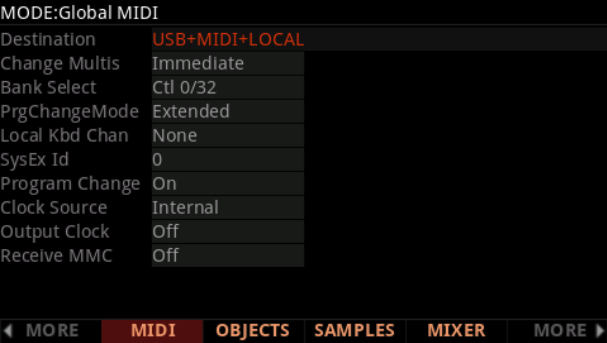
Many keyboards have global settings that specify how MIDI is handled. For example, a **Destination** parameter can prevent MIDI from being outputted to external devices like MainStage. Different brands use different naming conventions, so consult your keyboard's user manual for more information about MIDI transmission.
## No MIDI input
If MainStage isn't indicating MIDI activity, here are some things to investigate.
### Check cable
Is the MIDI cable plugged in securely? Is the MIDI cable plugged into the MIDI OUT from the keyboard and into the MIDI IN on the audio interface? Have you tried using a different MIDI cable?
### Check MIDI devices
Open the **Audio MIDI Setup** tool by pressing the **Setup** button in the Audio tab of the Settings window. You can find the MIDI devices by choosing `Window > Show MIDI Studio`. If your device isn’t listed, you may need to install or update software or drivers for your audio interface, and restart your computer.
### Check settings on your keyboard
Many keyboards have global settings that specify how MIDI is handled. For example, a **Destination** parameter can prevent MIDI from being outputted to external devices like MainStage. Different brands use different naming conventions, so consult your keyboard's user manual for more information about MIDI transmission.
 ## Read more
* [Setting up your keyboard rig](/basics/setting-up-your-keyboard-rig)
* [Should I use a USB or MIDI cable for MainStage?](/articles/usb-or-midi-cable)
## Read more
* [Setting up your keyboard rig](/basics/setting-up-your-keyboard-rig)
* [Should I use a USB or MIDI cable for MainStage?](/articles/usb-or-midi-cable)