> ## Documentation Index
> Fetch the complete documentation index at: https://docs.magicfox.co/llms.txt
> Use this file to discover all available pages before exploring further.
# Setting up your keyboard rig
Before you get started, be sure to review the [equipment checklist](/basics/equipment) to make sure you have everything you need.
Download and install [MainStage](https://www.apple.com/mainstage/) from the [Apple App Store](https://apps.apple.com/us/app/mainstage/id634159523). Using the download link we sent via email, download the keyboard programming and [unzip](https://support.apple.com/guide/mac-help/zip-and-unzip-files-and-folders-on-mac-mchlp2528/mac) the MainStage [concert file](/basics/introduction-to-mainstage).
Most [audio interfaces](/articles/why-use-an-audio-interface) are plug-and-play but if yours isn't, download and install the necessary software drivers.
Set your [keyboard](/articles/choosing-a-keyboard), [computer](/articles/choosing-a-computer), and interface on appropriate stands or surfaces. Avoid using an X-style keyboard stand because it offers the least amount of legroom and flexibility with pedals.
Never put your computer or interface on a sheet music stand, even if it seems stable. It isn't.
The [sustain pedal](/articles/pedals-for-mainstage) normally plugs into a jack labeled “Sustain”, “Damper”, or “Switch 1”. The [expression pedal](/articles/pedals-for-mainstage) should plug into a continuous control jack (likely labeled “CC1”).
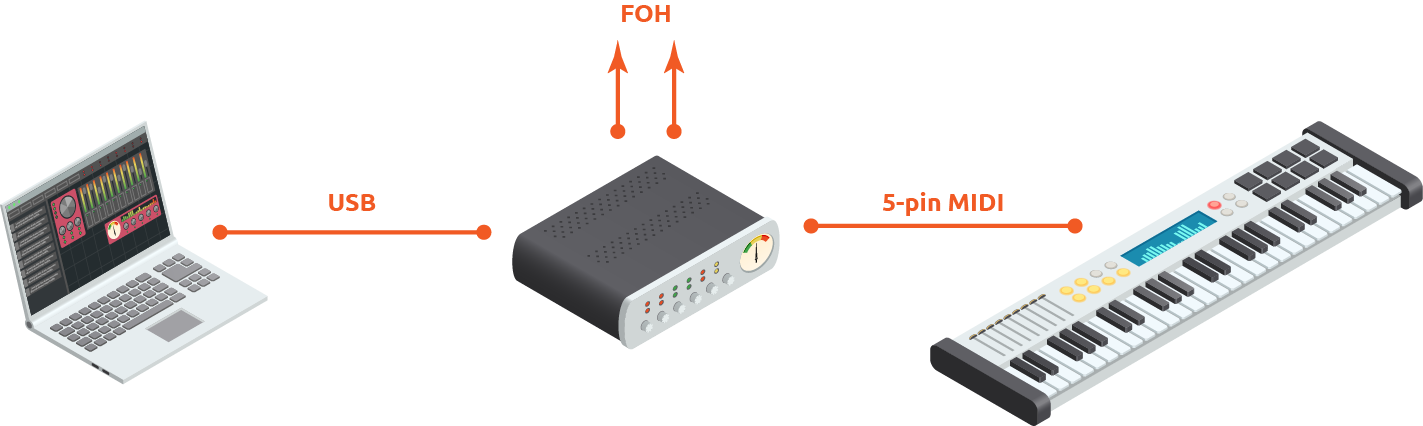
Your audio interface connects your computer, keyboard, and sound system together:
* Your audio interface most likely connects to your computer with a USB cable.
* Using a [5-pin MIDI cable](/articles/usb-or-midi-cable), connect the MIDI OUT from your keyboard into the MIDI IN of your audio interface.
* Connect your audio interface’s [stereo output](/articles/mono-or-stereo-output) to your venue’s sound system.
Inexpensive USB hubs are prone to failure. If you must use a USB hub, plug your audio interface directly into your computer and only use the USB hub for non-critical devices (e.g., keyboard and mouse).
Plug the power adapters for the keyboard, computer, and interface (if applicable) into a surge protector.
Turn on your computer, audio interface, and keyboard. Confirm that MainStage is [receiving MIDI input](/troubleshooting/confirm-midi-input). Depending on your keyboard's configuration, you may need to [assign](/basics/assigning-screen-controls) your patch change and expression [pedal](/articles/pedals-for-mainstage).
 ## Read more
* [Equipment for MainStage](/basics/equipment)
* [What computer do I need to run MainStage?](/articles/choosing-a-computer)
*
* [Choosing a keyboard to use with MainStage](/articles/choosing-a-keyboard)
*
* [What pedals do I need for MainStage?](/articles/pedals-for-mainstage)
* [Do I need an audio interface for MainStage?](/articles/why-use-an-audio-interface)
*
* [Should I use a USB or MIDI cable for MainStage?](/articles/usb-or-midi-cable)
*
* [How to assign screen controls in MainStage](/basics/assigning-screen-controls)
## Read more
* [Equipment for MainStage](/basics/equipment)
* [What computer do I need to run MainStage?](/articles/choosing-a-computer)
*
* [Choosing a keyboard to use with MainStage](/articles/choosing-a-keyboard)
*
* [What pedals do I need for MainStage?](/articles/pedals-for-mainstage)
* [Do I need an audio interface for MainStage?](/articles/why-use-an-audio-interface)
*
* [Should I use a USB or MIDI cable for MainStage?](/articles/usb-or-midi-cable)
*
* [How to assign screen controls in MainStage](/basics/assigning-screen-controls)