> ## Documentation Index
> Fetch the complete documentation index at: https://docs.magicfox.co/llms.txt
> Use this file to discover all available pages before exploring further.

# Scripter Overview

<Note>
  Articles about the Scripter plug-in and scripts are intended for advanced users who are developing their own MainStage programming.
</Note>

The [Scripter plug-in](https://support.apple.com/guide/mainstage/use-scripter-lgce728c68f6/mac) significantly expands the functionality of MainStage and Logic Pro by allowing you to create and run custom scripts. These JavaScript-flavored scripts can manipulate MIDI, and behave like any other plug-in in your concert.

MagicFox is pleased to [provide several scripts](https://magicfox.co/pages/mainstage-scripts). These scripts are freely distributed for personal, non-commercial use. Please [contact us](https://magicfox.co/pages/contact) to inquire about purchasing a license for commercial use.

<Columns cols={2}>
  <Card title="Harp Pedals" icon="file-code" iconType="light" horizontal href="/articles/scripter/harp-pedals" />

  <Card title="Harp Gliss Trigger" icon="file-code" iconType="light" horizontal href="/articles/scripter/harp-gliss-trigger" />

  <Card title="Note Blocker" icon="file-code" iconType="light" horizontal href="/articles/scripter/note-blocker" />

  <Card title="Triggered Note Blocker" icon="file-code" iconType="light" horizontal href="/articles/scripter/triggered-note-blocker" />

  <Card title="Virtual Patch Change" icon="file-code" iconType="light" horizontal href="/articles/scripter/virtual-patch-change" />
</Columns>

## Installing scripts

The typical steps for installing a script in MainStage are as follows:

<Steps>
  <Step title="Download and uncompress the archive.">
    Scripts are saved as **.pst** files. To ensure successful downloads, we compress our scripts into a .zip archive.
  </Step>

  <Step title="Move .pst file">
    Move the **.pst** file to this folder on your computer: `(your username)/Music/Audio Music Apps/Plug-In Settings/Scripter`.
  </Step>

  <Step title="Add the Scripter plug-in">
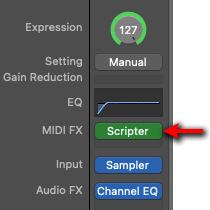
    Click the **MIDI FX** button on a channel strip (e.g., a harp channel strip) and choose **Scripter**. The Scripter plug-in will open.
    <img src="https://mintcdn.com/magicfox/IQdG2at1jThJh_Be/images/documentation/MainStage-channel-strip-MIDI-FX-scripter-plug-in.png?fit=max&auto=format&n=IQdG2at1jThJh_Be&q=85&s=fea9a592869a98a5a51b9f60105a909f" alt="Main Stage Channel Strip MIDI FX Scripter Plug In Pn" title="Main Stage Channel Strip MIDI FX Scripter Plug In Pn" className="mx-auto" style={{ width:"30%" }} width="210" height="210" data-path="images/documentation/MainStage-channel-strip-MIDI-FX-scripter-plug-in.png" />
  </Step>

  <Step title="Choose script">
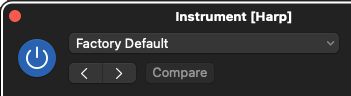
    Click on the drop-down menu ("Factory Default") in the Scripter window and choose the script.
    <img src="https://mintcdn.com/magicfox/IQdG2at1jThJh_Be/images/documentation/MainStage-scripter-factory-default.png?fit=max&auto=format&n=IQdG2at1jThJh_Be&q=85&s=f5f078d9e651d48d67fed36d1f435ab9" alt="Main Stage Scripter Factory Default Pn" title="Main Stage Scripter Factory Default Pn" className="mx-auto" style={{ width:"60%" }} width="351" height="96" data-path="images/documentation/MainStage-scripter-factory-default.png" />
  </Step>
</Steps>
