> ## Documentation Index
> Fetch the complete documentation index at: https://docs.magicfox.co/llms.txt
> Use this file to discover all available pages before exploring further.
# Tempo setlists
Frozen Ape's [Tempo app](https://apps.apple.com/us/app/tempo-metronome-with-setlist/id304731501) for iOS is one of the most popular metronome apps for musical theatre because it includes a powerful setlist feature. This is useful during rehearsals and individual practice, but Tempo setlists can also be used as a simple click track setup for live performances. [Click here to purchase Tempo](https://apps.apple.com/us/app/tempo-metronome-with-setlist/id304731501) from the Apple App Store.
MagicFox is pleased to provide free Tempo setlists for [most of our shows](http://magicfox.co/pages/tempo-setlists).
## How to import a setlist
Using the download link on the show's page, your iPhone or iPad will display a message asking if you'd like to download the file.
 Press the left side of Safari's address bar to open the context menu, and then choose "Downloads".
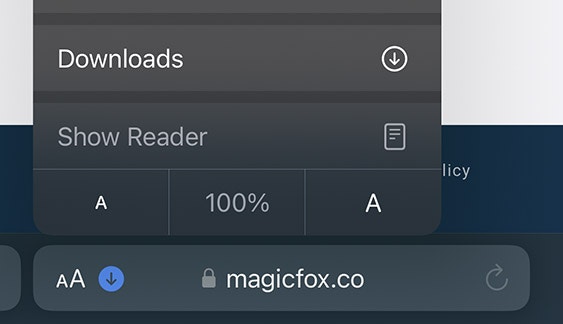 In the list of downloaded files, click the setlist to open it in the Files app.
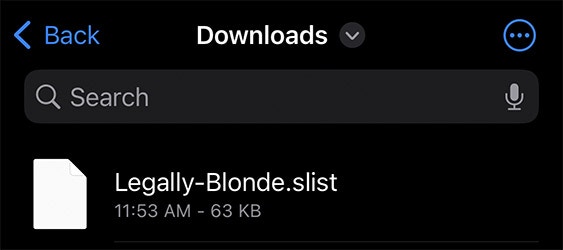
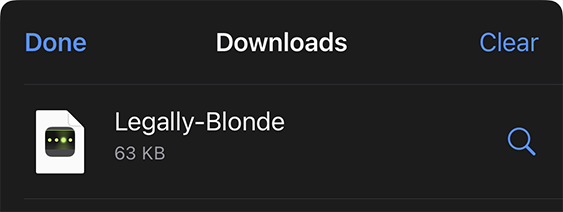 Navigate to the Files app on your iPhone.
 Find the downloaded setlist file in your Downloads folder.
 Press the blue "Share" button in the bottom left corner to open the list of options.
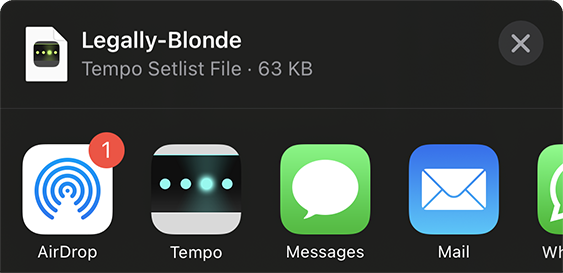 Select the Tempo app and Tempo will import the downloaded setlist.
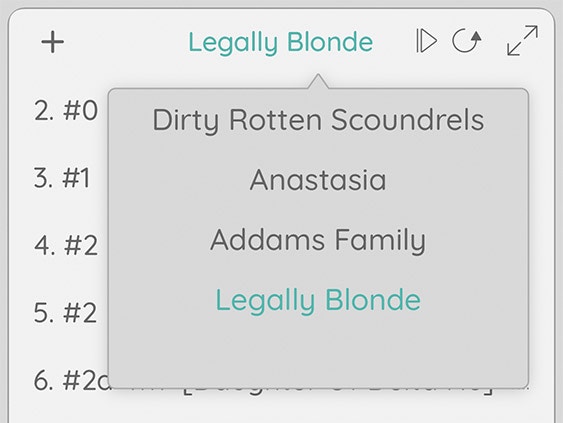
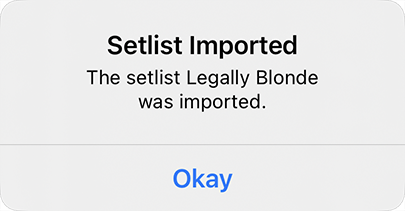 If it doesn't open automatically, press the setlist title and select the downloaded setlist from the popover.
 ## Interface modes
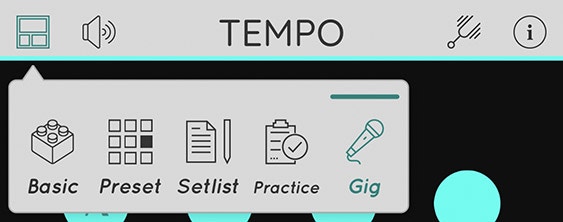
For our purposes, the relevant modes are Setlist and Gig. **Setlist** mode is similar to [Edit mode](/basics/mainstage-modes) in MainStage. **Gig** mode hides unnecessary controls to display the setlist prominently, similar to [Perform mode](/basics/mainstage-modes) in MainStage.
## Interface modes
For our purposes, the relevant modes are Setlist and Gig. **Setlist** mode is similar to [Edit mode](/basics/mainstage-modes) in MainStage. **Gig** mode hides unnecessary controls to display the setlist prominently, similar to [Perform mode](/basics/mainstage-modes) in MainStage.
 ## Editing setlists
Each tempo configuration is called a **song** in Tempo. Songs can be grouped into **setlists**, similarly to how patches can be grouped into sets in MainStage. In spite of Tempo's nomenclature, a musical's song can have many tempo changes, so we will not refer to them as songs in this documentation to avoid confusion.
## Editing tempo configurations
To make edits to a setlist, you will need to be in **Setlist** mode.
### Adding tempo configurations
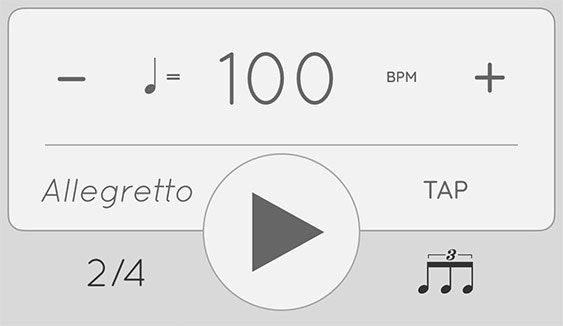
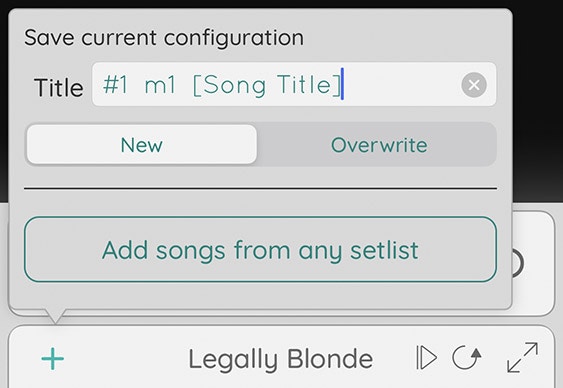
Set your desired BPM, meter, and beat pattern. Press the "+" button, type the name of this configuration, and press "Done" to save.
## Editing setlists
Each tempo configuration is called a **song** in Tempo. Songs can be grouped into **setlists**, similarly to how patches can be grouped into sets in MainStage. In spite of Tempo's nomenclature, a musical's song can have many tempo changes, so we will not refer to them as songs in this documentation to avoid confusion.
## Editing tempo configurations
To make edits to a setlist, you will need to be in **Setlist** mode.
### Adding tempo configurations
Set your desired BPM, meter, and beat pattern. Press the "+" button, type the name of this configuration, and press "Done" to save.
 ### Editing tempo configurations
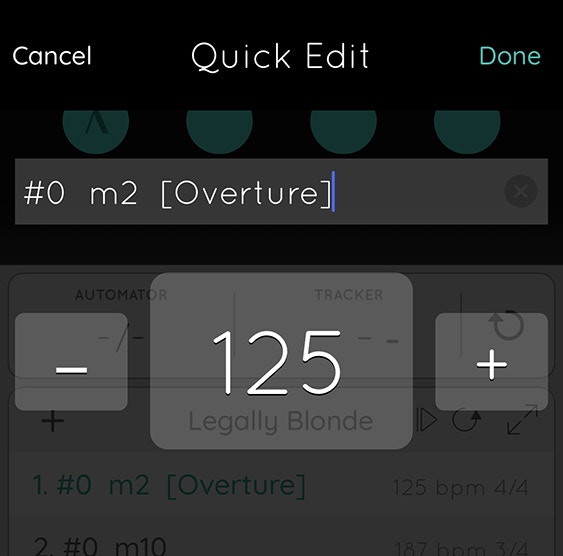
When you make changes to a configuration, an asterisk will appear next to its name in the setlist. Press a selected configuration to open the **Quick Edit** window and "Done" to save it.
### Editing tempo configurations
When you make changes to a configuration, an asterisk will appear next to its name in the setlist. Press a selected configuration to open the **Quick Edit** window and "Done" to save it.
 ### Reordering tempo configurations
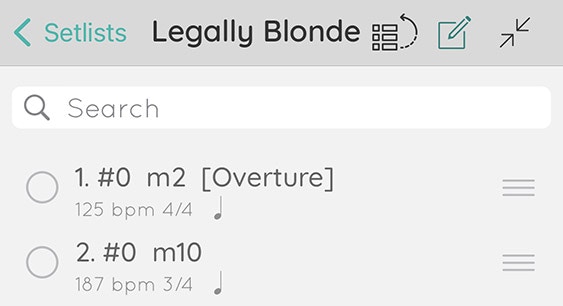
Open the Setlist module in Fullscreen mode by pressing the expand button. Press the edit button. Press and drag one of the item's reorder handles (the three horizontal lines on the left) to move the configuration to a new location.
### Reordering tempo configurations
Open the Setlist module in Fullscreen mode by pressing the expand button. Press the edit button. Press and drag one of the item's reorder handles (the three horizontal lines on the left) to move the configuration to a new location.
 ### Deleting tempo configurations
Swipe left on a tempo configuration to reveal a "Delete" button.
## Methodology
### Sources
To create these tempo setlists, we've used a variety of sources, including video footage, audio recordings (including cast recordings), promotional materials (commercials, etc), and of course the printed music. As you might expect, there are often discrepancies between sources. Accordingly, we've used our best judgement to choose BPM values that we feel most accurately reflect the intent of the show's authors and original creative team.
### Tempo drift
Many shows have been recorded without clicks. Of course this allows a degree of tempo elasticity—pushing forward and pulling back as appropriate. Thus, we have tried to choose BPM values that best represent the overall feel of the song or section. In many instances, performing a song to a click can sound too stiff or metronomic.
### Time signatures
The printed time signature may not match the time signature in our Tempo setlists. This is largely because the beat value can only be changed in Tempo at a global level. Additionally, the default beat value in Tempo for compound and irregular meters (e.g., 6/8, 9/8, 5/8) is the eighth note.
Thus, we generally use 2/4 to represent 6/8, and use 1/4 to represent a fast 3/4 (when it is conducted in one). You can still change the beat pattern for each tempo configuration, though. For example, setting the beat pattern in 2/4 to a triplet is functionally identical to 6/8.
### Deleting tempo configurations
Swipe left on a tempo configuration to reveal a "Delete" button.
## Methodology
### Sources
To create these tempo setlists, we've used a variety of sources, including video footage, audio recordings (including cast recordings), promotional materials (commercials, etc), and of course the printed music. As you might expect, there are often discrepancies between sources. Accordingly, we've used our best judgement to choose BPM values that we feel most accurately reflect the intent of the show's authors and original creative team.
### Tempo drift
Many shows have been recorded without clicks. Of course this allows a degree of tempo elasticity—pushing forward and pulling back as appropriate. Thus, we have tried to choose BPM values that best represent the overall feel of the song or section. In many instances, performing a song to a click can sound too stiff or metronomic.
### Time signatures
The printed time signature may not match the time signature in our Tempo setlists. This is largely because the beat value can only be changed in Tempo at a global level. Additionally, the default beat value in Tempo for compound and irregular meters (e.g., 6/8, 9/8, 5/8) is the eighth note.
Thus, we generally use 2/4 to represent 6/8, and use 1/4 to represent a fast 3/4 (when it is conducted in one). You can still change the beat pattern for each tempo configuration, though. For example, setting the beat pattern in 2/4 to a triplet is functionally identical to 6/8.